What is the Fake WhatsApp Video Call Generator?
The Fake WhatsApp Video Call Generator by FakeDetail is an intuitive, browser-based tool designed to create perfectly realistic screenshots of an active WhatsApp video call. Video calls have become a primary mode of communication, and there are many reasons you might need to simulate one—from creating relatable social media content and marketing materials to generating a specific visual narrative for a short film, or simply playing a harmless prank on a friend.
This tool perfectly mirrors the modern Android (Meta UI) WhatsApp video call screen. It provides complete customization of both the main background video feed and the smaller Picture-in-Picture (PiP) camera feed. With adjustable call timers and system status bars, you can create a convincing visual asset in seconds, without needing any complex photo editing software like Photoshop.
Key Features
- Modern Meta UI Design: Accurately recreates the latest Android WhatsApp video call interface, including the transparent top header, the bottom call controls panel, and the distinct red 'End Call' button.
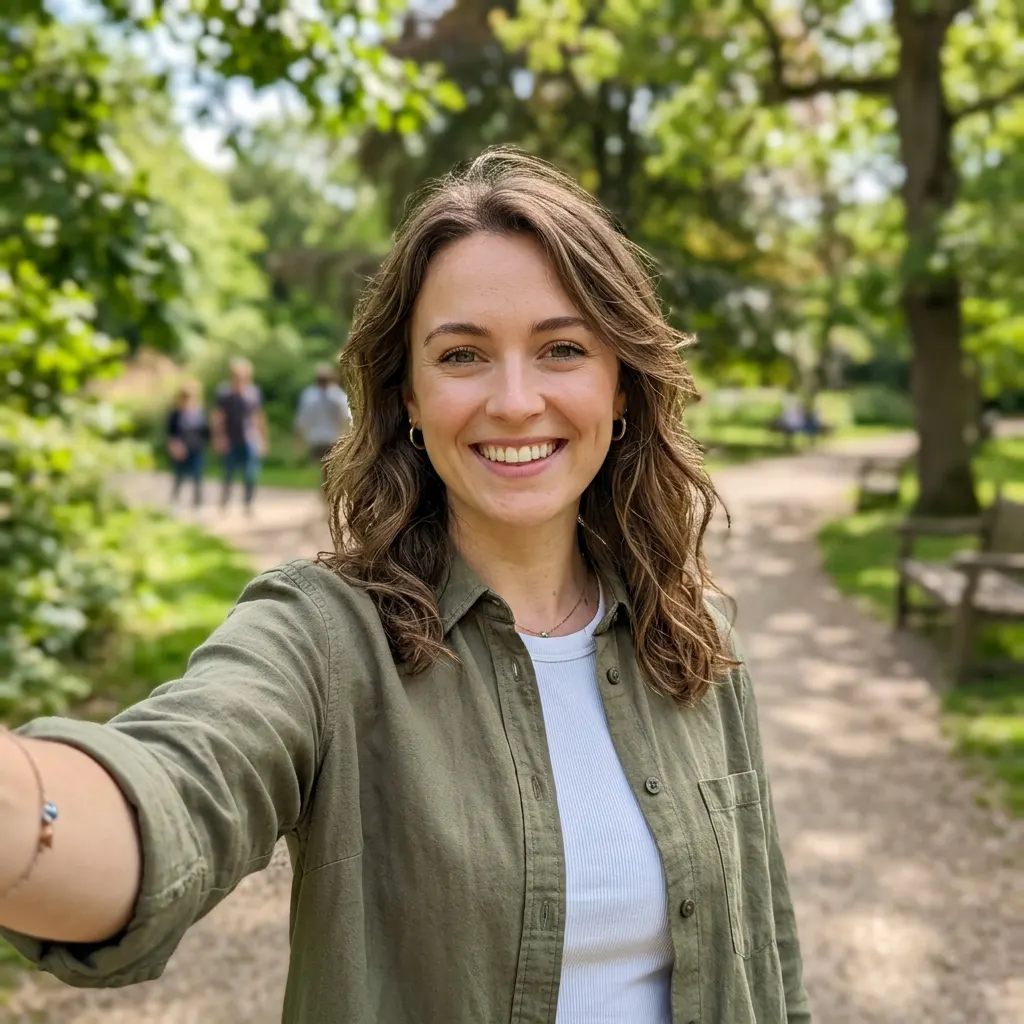
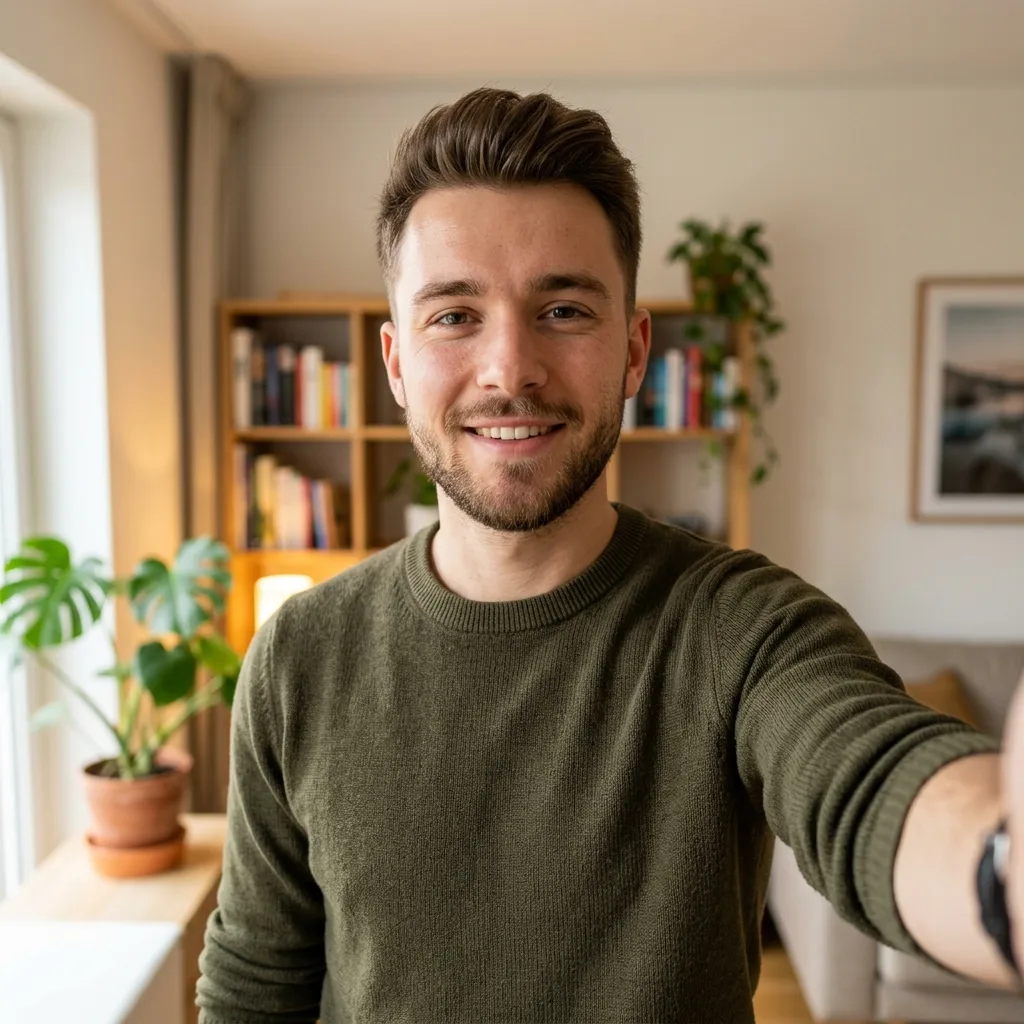
- Dual Image Uploads: You have full control over the visual feed. Upload a large 'Main Image' to represent the person you are "calling," and a smaller 'PiP Image' to represent your own camera feed.
- Customizable Call Details: Set the exact Contact Name you want displayed at the top of the screen, and adjust the 'Call Timer' (e.g., 14:23) to make it look like an ongoing, lengthy conversation.
- System Status Bar: Enhance the realism by matching the mobile device's top status bar to the context of your image. You can adjust both the System Time and the Battery percentage.
- High-Resolution Export: Download your finished mockup instantly as a crisp, watermark-free PNG image that is perfectly sized for sharing on social media or in group chats.
How to Create a Fake WhatsApp Video Call
Creating your custom video call screenshot is quick and requires no technical skills. Just follow these steps:
- Adjust Device Settings: Start by setting the System Time and Battery percentage in the 'System Settings' panel so the top bar looks natural.
- Enter Call Details: Type in the Contact Name exactly as you want it to appear, and set a specific Call Timer (like "05:42") to simulate how long the call has been running.
- Upload Video Feeds: Click on 'Main Image (Background)' to upload the photo of the person you are talking to. Then, click 'Small PiP Image' to upload the photo of yourself for the small floating window.
- Review the Live Mockup: Look at the interactive preview on the right side of the screen. The tool automatically applies a slight dark gradient at the top so the white text remains legible, just like the real app.
- Download Image: Once you are happy with the layout, click the "Download Image" button to save the high-quality PNG to your device.
Top Use Cases
- Content Creation & Marketing: Brands and influencers can use these mockups to visually represent "virtual meetings," online consultations, or long-distance connections in their promotional materials.
- Creative Storytelling: Writers and filmmakers can generate on-screen visual assets to show characters interacting via video without having to actually record a live call.
- Pranks & Jokes: Create a funny image showing yourself in a "video call" with a famous celebrity, a fictional character, or someone completely unexpected to share with your friends.
Frequently Asked Questions (FAQs)
Can I use a GIF or a real video instead of an image?No. This generator is specifically designed to create static, high-resolution PNG image mockups (screenshots) of a video call. It does not support motion video or GIF uploads.
Why is there a dark shadow at the top of the image?This is an authentic feature of the real WhatsApp application. A slight gradient overlay is applied at the top of the screen to ensure that the white text (Contact Name, Time, Icons) remains visible regardless of how bright your background image is.
Does this tool actually connect to my camera?Absolutely not. The tool does not access your webcam or phone camera. All images are uploaded manually by you and processed entirely locally within your web browser. We do not store or see your uploaded photos.